Running the session
The heart of a league: create the sessions, check people in, generate the night’s play, fill the courts — and let players enter their own scores.
Create the sessions
New session asks for three things: the date, the courts, and — if you want one — a PIN. Courts can be a count (“4 courts”) or real names (“Centre court, Back court”) — the names follow through everywhere, all the way to the Arena.
For a whole season, Add as a series creates the sessions in one go: every week, every two weeks, twice a week… You adjust or delete the exceptions (holidays, closed gym) afterwards.
Invitations and attendance
Before the session, invite the group by email: the message carries two buttons — I’m in and Can’t make it — and the player answers in one tap, with no account. The button they press records the answer and opens the session page already showing it, where it can still be changed. The subject holds two things, because a lock screen shows no more: RSVP and the date. You watch the answers come in from the console — enough to know on Wednesday whether Sunday needs six courts or four.
On the day, you take arrivals: check people off from the console, or let players flag their own arrival from the session’s check-in page. Someone shows up unannounced? Add a walk-in player — pair or team, whichever your event fields — slots them into the running session, for tonight only. In a league whose divisions re-form each session you are not asked which one: it is settled when you build the session, like everyone else’s.
Only players who have arrived go into match generation. Taking arrivals isn’t paperwork — it’s what guarantees no match gets created for someone who stayed home.
A player’s email
An invite goes to the player’s own address. On the Roster page, expand a row and you will see that address under each name: click it to correct it, empty it to remove it. A player who has none says so in plain sight — add an email — and that is exactly why they are counted as “no email” when invites go out.
One inbox belongs to one person: type an address another entrant already holds and SetRally names them instead of storing the same mailbox twice. The fallback address, further down the same row, is only used by players who have none of their own.
Let the invites go out on their own
Once the sessions exist, SetRally can send each session’s invite without you thinking about it: three days before, at 9 a.m. (or the lead and time you choose), on your club’s clock. You flip one switch, once, in the event settings under Ask who’s coming, and the whole season is covered — a weekly league gets a weekly invite, and a season with a break simply follows its own calendar. The automatic send goes out once per session; the buttons stay for a player added afterwards, or to chase those who haven’t replied.
In the settings, a sentence under the switch tells you exactly when the next invite goes out and for which session, then the one after — it updates as you change a setting, so you read the consequence before leaving the page. Language of the invites sits just above the switch, and covers every invite this event sends — the automatic ones and the ones you send by hand. It is the email’s language, not your console’s.
The Reminder field next to it adds a second email a few days later — one only, and only to the players who have not answered. Its subject starts with Reminder, so an inbox never shows the same line twice. The reminder always lands after the invite: the choices stop one day short of it, and moving the invite closer switches the reminder off rather than sending both at once. The Roster page names its date, then says when it went.
A word to your players, for one session
On a session’s Roster page, the This session’s invite card holds a A word to your players box: write what they need to know that day — a closed parking lot, a different door, a later start. The note saves itself as you type, goes into the invite email under the reply buttons, and shows on the page where each player answers — where an email address you write in it (contact@yourclub.com) becomes tappable, so a player can reach you without copying it out. Written after the email has gone, it won’t be in it — but it still appears on the reply page of everyone who taps their link, and the card tells you so.
This is not the event’s Public notice, which stays up as a banner on every public page until you clear it: the word to your players belongs to one session and travels only with its invite.
Knowing where the invite stands
The same card always says one thing: when the invite goes out, or that it went and how many players received it. If some emails were held for tomorrow by the daily limit, it says so — nothing to redo, the rest goes out on its own. If the planned moment passed with nothing sent (a session created the same day, say), it says that too, and Send now stays within reach.
Generate the night’s play
Each division picks its formula, session by session:
- Pools only — everyone plays, the night’s standings are the verdict.
- Pool + playoffs — a pool phase, then the best cross into a bracket, all within the same session.
- Open night (swiss) — no structure up front: pairings form through the evening, each time you fill the courts, favouring those who’ve played least, avoiding rematches and preferring an opponent on the same number of games — what players call swiss pairing, minus the pause between rounds. The formula for relaxed club nights. It sits in the same menu as the pools, division by division, and the night’s standings count toward the season like a pool’s.
One button generates the matches from who’s there. Don’t like the result? Regenerate freely until a match has been played.
Three things trade against each other: guaranteed games (does an early loser still play?), total time, and an undisputed winner. Pure knockout is shortest but sends half the room home after one match; pools alone get everyone playing without crowning anyone convincingly; pool + playoffs pays both — the safe bet for a group of 12 to 32. And for a no-stakes club night, the open night beats everything else.
Fill the courts
Fill the courts assigns waiting matches to free courts, oldest first, and never puts the same person on two courts. The queue shows who’s waiting and why — “Mireille is still on court 2” — so nobody has to come ask you.
Players enter their own scores
This is the feature that takes the pencil out of your hands. Every match has its self-scoring link — shown as a QR code or sent to the players:
One side enters the score from their phone, game by game — each game appears in the Arena the moment it’s entered.
The other side confirms: “Alex entered this score. Is it right?” One tap, and the score locks, the standings update, the court frees up.
Disagreement? The match flips to Score disputed and waits for your ruling — you settle it from the console in thirty seconds.
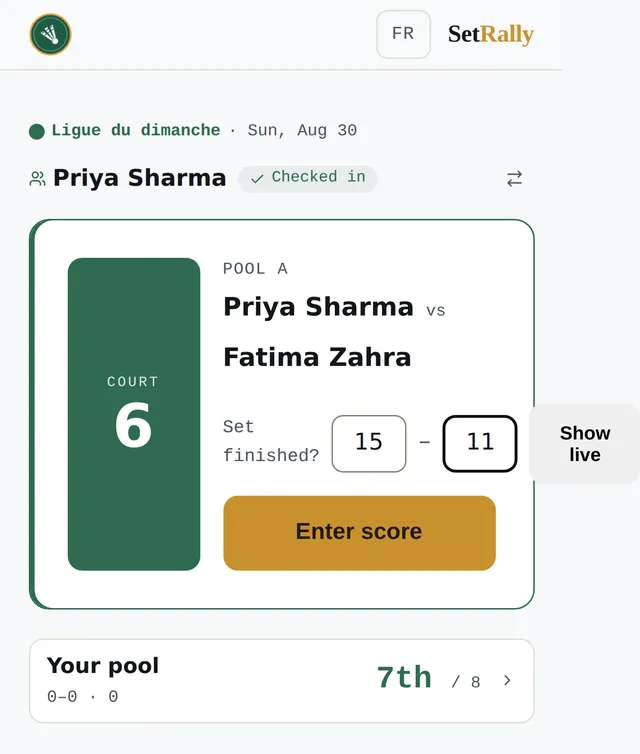
Confirmation itself is a setting (the Scores tab): mutual confirmation is the default behaviour, and you choose whether an unanswered score locks itself after a few minutes or stays open until confirmed. For a group that trusts itself, turn it off — the first score entered is final.
Scoring formats
The format says how many games and to how many points — “3 games to 15”, “2 to 21”, and so on. Set it once for the event, then refine where needed: a division that plays differently, playoffs longer than pool play, a shortened session because the gym closes at 9.
And if your group doesn’t want rules, free mode records scores exactly as players declare them, no validation — the standings compute the same.
Fixing a score
A locked score isn’t carved in stone: from the console, reopen the match, correct it, lock it again. Standings, brackets and league points recompute themselves.